Modernising lean tools with digital technology
5S, kanban, visual management and standard work still apply — the shop floor is now a shared drive, an LMS and a group chat.
CompletedDigital 5S: make the right file the obvious one
| 5S | In your digital workspace |
|---|---|
| Sort | Archive superseded versions and dead links |
| Set in order | One predictable naming and folder pattern |
| Shine | Fix broken links, captions and access errors weekly |
| Standardise | One master template per artefact type |
| Sustain | A named owner and a review date |
A colleague should find the current version of any teaching artefact in under 30 seconds without asking you.
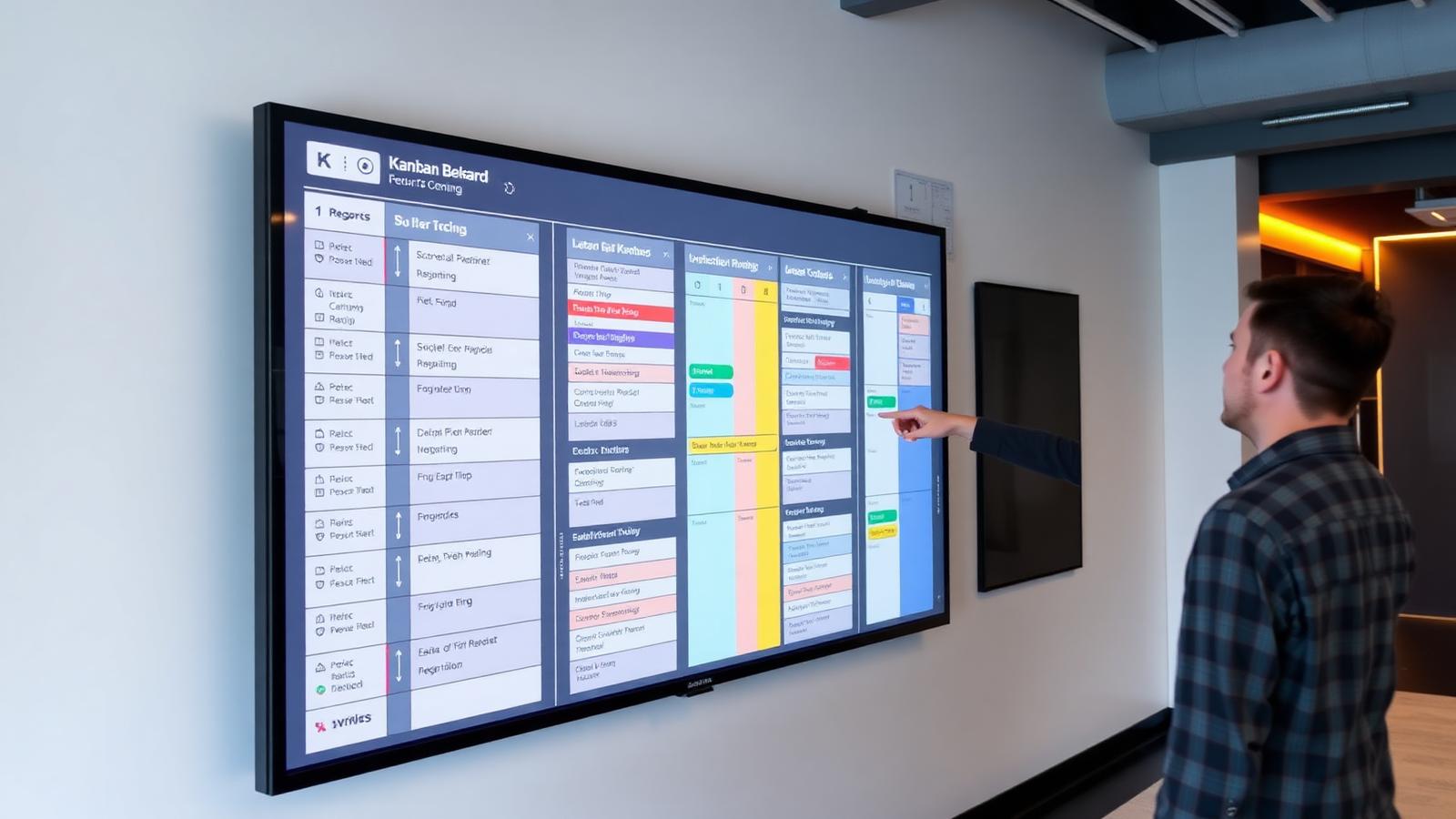
Kanban for teaching work
Columns that work well for instruction: Needed → Drafting → Peer check → Live → Retire / revise.
Visual management: make the problem visible early
- 1StatusWhat is live, in review or retired.
- 2SignalA clear marker when something is blocked.
- 3OwnerWho acts next, by name.
- 4DateWhen it will be reviewed again.
Canva AI: build interactive activities with Canva Code and Sheets
Canva Code and Canva Sheets turn static slides into interactive learning tools. Use them to create activities that students manipulate, not just read.
| Feature | Use it for | Example in TVET |
|---|---|---|
| Canva Code | Mini-apps, widgets, simulations and simple games without leaving Canva. | A wiring-quiz widget where learners drag components to complete a circuit. |
| Canva Sheets | Live data tables, calculations, progress trackers and scoring inside a design. | A project tracker where learners update their own task status and see team progress. |
- Canva Code: Start with a single learning objective, then choose a widget that checks it. Keep the activity to one screen, one action, and one correct outcome.
- Canva Sheets: Link a table to a visual progress bar or a team score so the activity updates itself as students enter data.
- 1Pick the objectiveWhat must the learner be able to do after the activity?
- 2Choose the interactionCode for decision-making, Sheets for tracking and reflection.
- 3Set the feedback loopShow correct answers, scores, or next steps immediately.
- 4Embed in the flowPlace it where students naturally pause, not as a separate file.
Create an interactive exit ticket using Canva Code for a university class.
Include:
Student name or ID
One multiple-choice question checking understanding of today's lesson
One confidence-rating question from 1-5
One short-answer question: "What is still unclear to you?"
A Submit button with a confirmation message
Connect the activity to a Canva Sheet so that every submission creates a new row recording the student identifier, answers, confidence rating and submission time.
Design the interface to be simple, mobile-friendly and suitable for completing in under 3 minutes.
Create a live classroom poll using Canva Code where students respond to a question during a lecture.
The screen should show:
The poll question
Four selectable answer options
A Submit Response button
A simple visualisation showing the class response distribution after submission
Link the poll to a Canva Sheet so that each student's response is recorded as a separate row. Include columns for student name or ID, selected answer and submission time.
Use the sheet data to update the response counts shown in the activity. Prevent accidental duplicate submissions where possible.
Create a live classroom poll using Canva Code where students respond to a question during a lecture.
The screen should show:
The poll question
Four selectable answer options
A Submit Response button
A simple visualisation showing the class response distribution after submission
Link the poll to a Canva Sheet so that each student's response is recorded as a separate row. Include columns for student name or ID, selected answer and submission time.
Use the sheet data to update the response counts shown in the activity. Prevent accidental duplicate submissions where possible.
Create interactive modules for lean teaching
Lovable lets you turn static slides, notes and PDFs into a guided digital module. Upload your teaching materials, describe the learner flow you want, and generate a multi-page interactive module with a sidebar, progress tracking and built-in activities.
- Upload your source files — slides, notes, PDFs, or a course outline.
- Describe the structure — one unit per page, sidebar topics, progress tracking.
- Ask for activities — check-ins, reflections, quizzes, or decision points on each page.
- Review and iterate — refine the layout, wording, and flow until it matches your teaching intent.
UPLOAD your slides, then prompt:

Create a digital interactive module using the attached files with the following features: left sidebar showing all module topics and progress; 1 unit per page; include activities for learners. Make sure each page has a hero section with beautiful visuals relevant to the topic and use consistent colour scheme.
Create a digital interactive module from the attached files with the following features: left sidebar showing all module topics and progress; 1 unit per page; include activities for learners; add a password or enrolment key gate at the entry page so only students with the key can access the content; store the access state so returning visitors do not need to re-enter the key during the same session; keep the rest of the module public-facing and mobile-friendly.
Standard work is a shared baseline, not a script
- The best-known way to do the task today.
- The quality criteria that must be met.
- The point where professional judgement is required.
- The route to improve it when evidence says otherwise.
Context: I teach [module] to [learner group] in a TVET setting.
Task: Draft standard work for [recurring teaching task] as a one-page checklist.
Constraints: Maximum 10 steps; plain language; no tool-specific jargon; usable by a relief instructor.
Evidence: For each step state the quality criterion and the point where educator judgement is required.
Output: A table with columns Step | What good looks like | Judgement needed | Common failure.
Flag anything that must be verified against local policy.
Rebuild one lean tool for your own workflow
Choose the tool that attacks the constraint you found on Day 1.
Leave withOne working lean artefact.
Saved in this browser automatically.
Mark it so your progress is kept in this browser.